Title here
Summary here

After reading this guide, you’ll be able to:
Before you start, make sure you have:
Products are the items you sell to customers - whether that’s a coffee, a pizza, a retail item, or a service.
Each product record stores everything the system needs to process a sale:
📖 What this means: Think of a product record as a complete profile for each item you sell. Once it’s set up, your team can sell it at the till immediately.
You’ll see your complete product list.
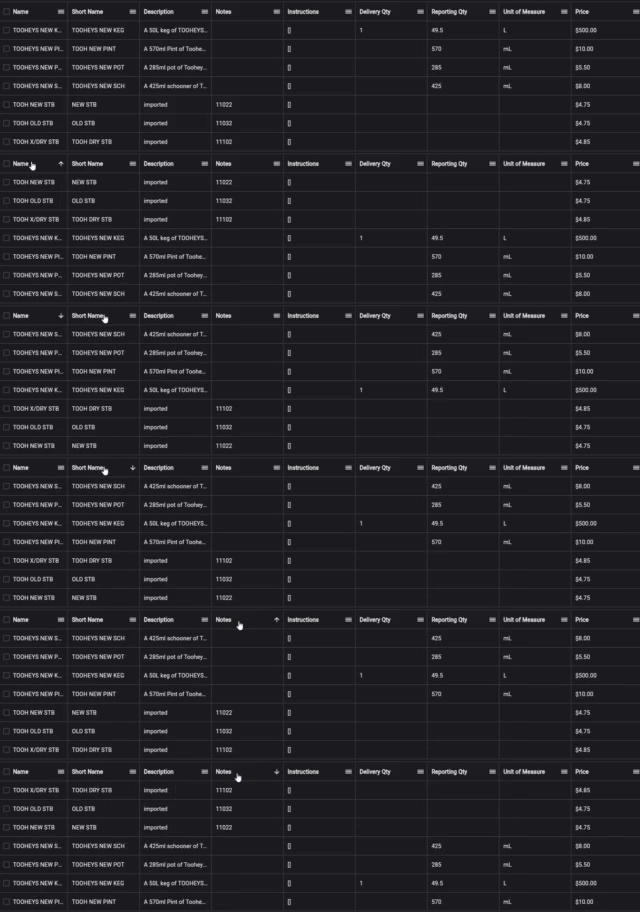
💡 Tip: Use the search box at the top to quickly find existing products. It searches names, descriptions, and notes.
🚨 Heads up: You must fill in both the name and short name - the system won’t let you create a product without them.
You need at least one price for customers to buy this product.
💡 Example: Setting up a cappuccino
At The Beach Cafe, they’re adding a cappuccino:
<img src="/images/docs/hq/hq-prod-product-price-add.png" alt=“New Price” loading=“lazy” decoding=“async”
/>
This helps you track profit in your reports.
✅ Best practice: Always enter costs for your products. This gives you accurate profit reports and helps you make better business decisions.
If your product has a barcode, add it now:
Click Save at the bottom right of the page.
Your product is now ready to sell! 🎉
Tags help you group products together (like “Hot Drinks” or “Food” or “Gluten Free”).
⚠️ Important: You must set up your tags before you can add them to products.
To add a tag:
To remove a tag:
Instruction groups let customers customize products when ordering - like choosing milk type for coffee or cooking level for steak.
💡 Example: Coffee customization
Joe’s Coffee Shop sets up instruction groups so customers can choose:
When staff add a coffee to a sale, these options automatically pop up.
⚠️ Important: You need to create your instruction groups before assigning them to products.
To assign instruction groups:
Product sizes let you link different sizes together - like small, medium, and large coffees - so staff can switch between them with one button at the till.
💡 Example: Beer sizes at The Riverside Pub
Instead of having separate buttons for every beer in every size, they set up:
This saves screen space and makes the till faster to use.
Learn how to set up product sizes
Images automatically appear on till buttons, making them easier for staff to find.
To add an image:
To remove an image:
🚨 Heads up: If you remove an image from a product that already has a button on your till keyboard, and that button has no text, the button will become blank. You’ll need to add text to the button or recreate it.
Free text products let staff type a custom description at the till during a sale - useful for miscellaneous items or special orders.
✅ Best practice: Use free text products for one-off items you don’t want to create full product records for (like “Custom cake decoration” or “Special order item”).
To enable free text:
The product will still use its default name, but staff can change it if needed.
Open price products let staff enter a custom price at the till - useful for variable-price items or special discounts.
✅ Best practice: Limit who can use open price products with staff permissions to prevent pricing errors.
To enable open price:
The product will still use its default price, but staff can change it if needed.
Print headers create subheadings on kitchen dockets to help organize orders (like “MAINS” or “DRINKS” or “DESSERTS”).
To assign a print header:
You need to set up print headers before assigning them to products.
💡 Tip: Click Revert if you want to discard changes since you last saved.
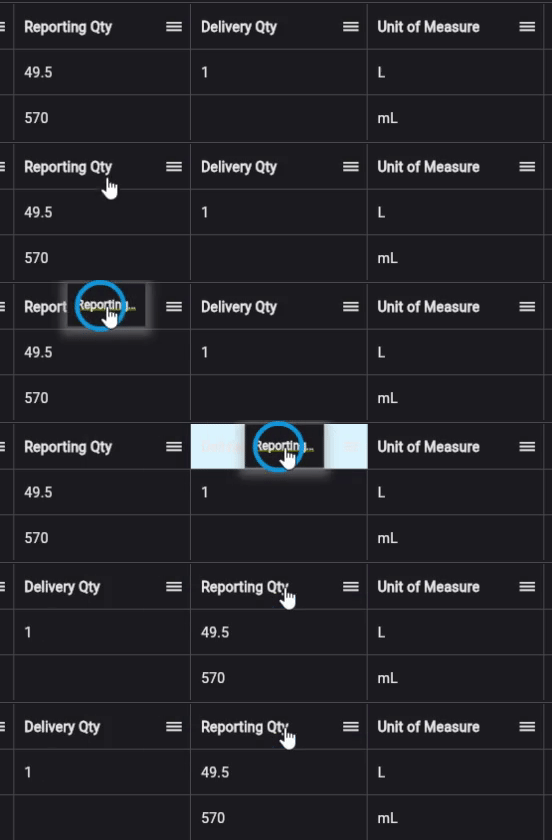
💡 Tip: This is great for making the same change to several products - like updating costs or adding a new tag to a category.
| Action | How to do it |
|---|---|
| Sort by any column | Click the column header |
| Rearrange columns | Click and drag a column header |
| Resize columns | Drag the edge of a column header |
| Change rows per page | Use the dropdown at the bottom right |
| Navigate pages | Use the arrows at the bottom right |
| Search products | Type in the search box - it searches names, descriptions, and notes |
| Preview a product | Click once on a product - details appear on the right |
Want to see who changed a product and when?
Now that your products are set up, you’re ready to: