Title here
Summary here

After reading this guide, you’ll be able to:
Before you start, make sure you have:
Price lists are different pricing levels you can apply to products - they let you charge different amounts for the same product depending on the situation.
📖 What this means: Instead of creating separate products for every pricing scenario, you create one product and add multiple price lists to it. The till automatically charges the right price based on which price list is active.
| Scenario | Price list setup | Example |
|---|---|---|
| Different prices for dine-in vs takeaway | Create “Dine-in” and “Takeaway” price lists | A burger costs $18 for dine-in, $16 for takeaway |
| Member discounts or loyalty pricing | Create “Standard” and “Member” price lists | Members get 10% off all drinks |
| Different pricing by location or venue | Create a price list for each venue | Airport venue charges $5 for coffee, city venue charges $4.50 |
| Happy hour or time-based pricing | Create “Standard” and “Happy Hour” price lists | Beer is $8 normally, $6 during happy hour |
| Wholesale vs retail pricing | Create “Retail” and “Wholesale” price lists | Products sold at different prices to trade customers |
💡 Example: Restaurant with attached bottle shop
The Riverside Bistro has a restaurant, bar, and bottle shop. They set up two price lists:
Price List 1: “Dine-in”
Price List 2: “Takeaway”
A bottle of wine has both price lists:
A glass of that wine only has the “Dine-in” price list:
⚠️ Important: You need to create your price lists first, then assign them to individual products when you set up or edit those products.
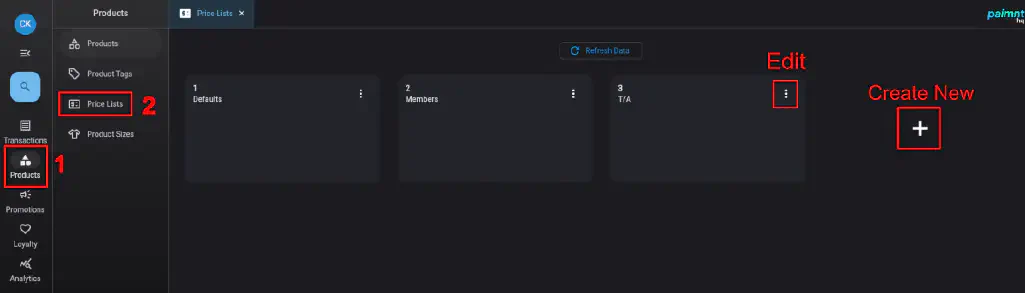
You’ll see your existing price lists (if you have any).
✅ Best practice: Use clear, descriptive names that your team will understand at the till. “Takeaway” is clearer than “Price Level 2”.
✅ Best practice: Number your price lists logically - for example, use 1 for your standard pricing, 2 for members, 3 for special promotions. This makes them easier to manage.
Now that your price list exists, you need to add it to products:
💡 Tip: You can add the same price list to multiple products at once by opening several products in separate tabs and adding the price list to each one.
🚨 Heads up: Once a price list has been assigned to products and has prices in it, you cannot change the price list number. You can only change the name.
To edit a price list:
⚠️ Important: Changing a price list name will update it everywhere it’s used - on all products and at all tills. Make sure your team knows about the change.
Q: How many price lists can I create?
You can create unlimited price lists. However, most businesses work well with 2-4 price lists. Too many price lists can make product setup and staff training more complex.
Q: Can I assign different price lists to different tills?
Yes. You configure which price list each till uses in your till settings. This means one till can use “Dine-in” pricing while another uses “Takeaway” pricing.
Q: What happens if a product doesn’t have the price list that’s active at the till?
The system will automatically fall back to another available price list on that product. For example, if a till is set to “Takeaway” but a product only has “Dine-in” pricing, it will use the “Dine-in” price.
Q: Can I delete a price list?
You can delete price lists that aren’t being used. If a price list is already assigned to products, you’ll need to remove it from all products first before deleting it.
Q: Do I need to set up price lists before creating products?
Yes, it’s best to set up your price lists first. That way, when you create products, the price lists are ready to use. However, you can always add new price lists later and assign them to existing products.
Now that your price lists are set up, you’re ready to: