Title here
Summary here

Covers (also called Pax) is a way to record how many guests are seated at each table. Think of it like a headcount for every table sale.
📖 What this means: When your server seats 4 people at Table 12, they’ll record “4 covers” on that table’s sale. Now you know exactly how many guests generated that table’s revenue.
Recording covers helps you:
| What it helps with | How it works | Example |
|---|---|---|
| Average spend per guest | Shows how much each person spends on average | Table 12 spent $240 with 4 guests = $60 per person |
| Forecasting stock needs | Predict how much food and drink you’ll need based on expected guests | If you average 200 covers on Fridays, plan stock accordingly |
| Staff performance | See which servers generate higher sales per guest | Compare average spend across your team |
| Business planning | Understand your peak times and guest patterns | Tuesday lunches average 15 covers vs. Friday dinners at 80 covers |
Example: The Beach Cafe has a party of 6 at Table 8. When the server starts the sale:
Later, if 2 guests leave early, the server can update it to 4 covers using the keyboard button.
🚨 Heads up: Make this change during a quiet period, as it will affect all tills once synced. Let your team know that cover prompts will start appearing.
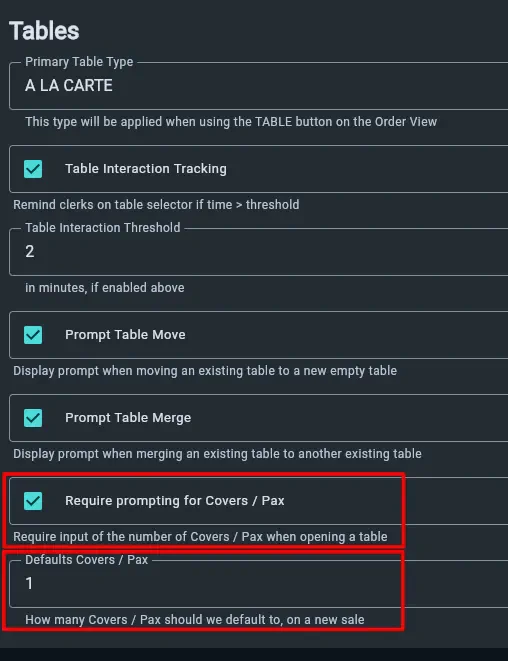
✅ Best practice: Set the default to your most common party size.
📖 What this means:

💡 Tip: Place this button near your table selector for easy access.
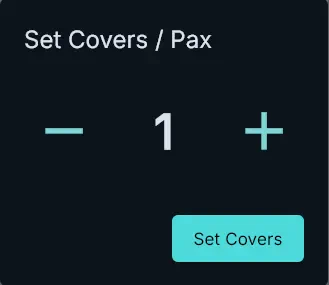
⚠️ Important: The automatic prompt only appears once per table. To change covers again, use the Set Covers button or the Floor Map method below.