Using Table Sales
Table Sales allow you to assign a table number to a sale, track orders for that table, and manage the entire dining experience from seating to payment.
π What this means: When a customer sits at Table 5, you can create a sale linked to that table number. As they order drinks, entrees, and desserts throughout their meal, everything stays attached to Table 5. You can save the sale between courses, reopen it to add more items, and finally close it when they’re ready to pay.
Why use it?
Table Sales help you:
| What it helps with | How it works | Example |
|---|---|---|
| Track orders by location | Know exactly which table ordered what | Table 12 ordered 2 steaks, Table 8 ordered pasta |
| Manage service flow | Save and reopen tables as customers continue ordering | Save Table 5 after entrees, reopen later for dessert orders |
| Kitchen communication | Automatically print dockets with table numbers when items are added | Kitchen knows Table 12’s order is for the outdoor section |
| Staff coordination | Multiple staff can see which tables are occupied across different tills | Server on Till 2 sees that Table 8 is already being served by someone on Till 1 |
| Prevent conflicts | Only one till can work on a table at a time, avoiding duplicate orders | If Till 1 has Table 5 open, Till 2 cannot open it simultaneously |
How it works in practice
Example: The Coastal Restaurant has a party of 4 seated at Table 7:
- Server opens a new sale and assigns it to Table 7 using the table selector
- They take the initial drink orders and add them to the sale
- They press Save Table β this prints a docket to the bar with “Table 7” and stores the sale
- 10 minutes later, the server returns to take food orders
- They enter “7” and the system reopens Table 7’s saved sale
- They add the food items β a new kitchen docket prints automatically with “Table 7”
- The table is saved again while customers eat
- When ready to pay, the server reopens Table 7 and processes payment
- The sale is finalized and Table 7 becomes available again
Available table type:
- A la Carte Table β Designed for table service where customers pay after ordering. Table sales can be saved and reopened later. Kitchen dockets print when new products are added. Tables are shared across tills using the Device Mesh, but can only be opened on one till at a time.
You can set a Primary Table Type in tables settings (Settings β Table Interactions). This determines the type used by the table button in Order View and Table Selector.
Starting, Saving, and Opening Tables
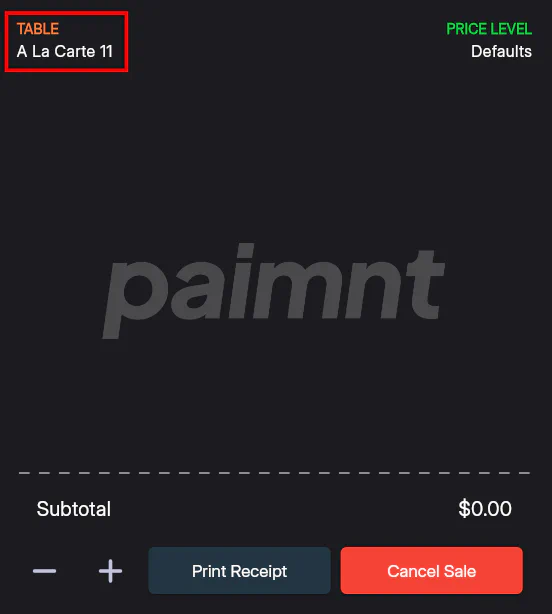
- Starting a New Table: Assign an unused table number to a sale. The a la carte table number will display at the top left of the order view.

- Saving a Table: Saving prints kitchen dockets and stores the sale to continue later. Only one till can have the table open at a time.
Note: Saving is different from holding a sale or table. Holding locks the sale to the current till and does not print.
- Opening an Existing Table: Enter the table number before adding any items to the order view or using other functions.
Adding a table number after adding items will save the current order directly to the table without opening it.
Moving, Merging, or Transferring Tables
- Move to an unused table number: Confirmation box appears; press Move to apply.

- Merge with an existing table: Transfers items; customer data does not transfer.

- Hold and Recall Tables: Temporarily hold a table sale without printing a docket.
Adding a Table Number
- New or unused table: Can be added anytime during the sale.
- Existing table: Must be added at the start or end of the sale.
Methods
- Table Selector: Press the table indicator icon β select table number

Preset Button: Press a button assigned in the keyboard editor
Table Function Button: Enter table number β press button
Order View Table Button: Enter number β press button
Printing a Bill
Print a bill for an open table without finalising the sale.
Finalising a Table
Finalize once payment is complete. Supports splitting bills and multiple payment methods.
Checking Table Status & Interaction
- Use the Primary Table Type and Table Selector to see current table status
- Enable Table Interaction Tracking to monitor when staff last interacted with a table
- Interactions reset via adding products, payments, or pressing the interaction button
